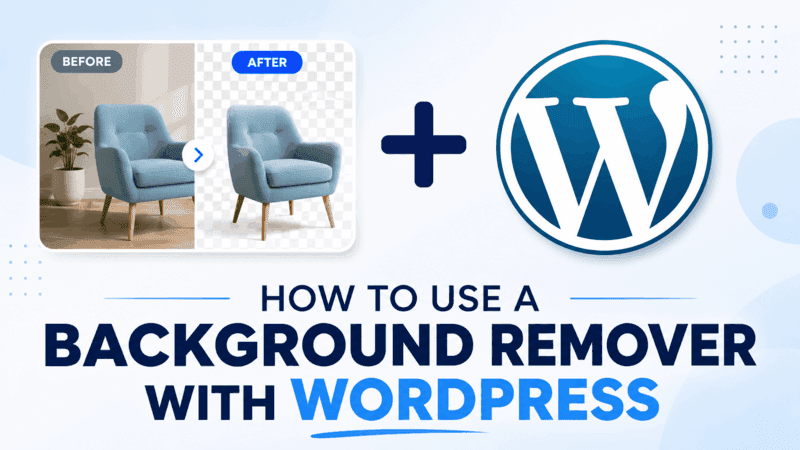

Background Remover for Your WordPress Website
Clean images make a WordPress site feel more professional. Product photos look sharper, author portraits feel consistent, and blog visuals are easier to reuse across landing pages, social media, and newsletters. The problem is that image cleanup usually sends you out of WordPress and into a design tool.
The Remove Background AI WordPress plugin brings that workflow into the block editor. Install the plugin, connect a RemBG API key, add the Remove Background block, upload an image, and the plugin sends the image to RemBG.com for AI background removal.
What the plugin does
Remove Background AI is built as a WordPress block. Instead of downloading an image, opening a separate editor, removing the background, exporting a PNG, and uploading it again, you can handle the key step from the post or page you are already editing.
That makes it useful for:
- WooCommerce stores that need cleaner product images
- Bloggers who want hero images without distracting backgrounds
- Agencies preparing landing pages for multiple clients
- Creators turning portraits, objects, or screenshots into reusable assets
- Marketing teams that want faster image cleanup without design bottlenecks
The plugin is especially helpful when you do not need a full design suite. Most of the time you simply need one thing: remove the background and keep moving.
Requirements before you install it
At the time of writing, the WordPress.org plugin listing notes these requirements:
- WordPress 6.7 or higher
- PHP 7.4 or higher
- A free API key from RemBG.com
- JPG, PNG, or WebP images for typical uploads
The API key is important because the actual AI processing happens through the RemBG.com service. WordPress handles the editing experience, while RemBG performs the background removal and returns the processed result.
How to set it up
The setup flow is intentionally simple:
- Open your WordPress dashboard.
- Go to Plugins and search for
Remove Background AI. - Install and activate the plugin.
- Open the Remove Background AI settings page in your admin menu.
- Create or copy your free API key from RemBG.com.
- Paste the API key into the plugin settings.
- Open a page or post in the block editor.
- Add the
Remove Backgroundblock and upload an image.
After the image is uploaded, the plugin sends it for AI processing and returns a background-free version that you can use in your WordPress content.
Why this matters for e-commerce
Product photography is one of the fastest ways to make a store feel trustworthy. A clean background helps the customer focus on the item instead of the table, room, shadows, or clutter behind it.
For WooCommerce stores, this can improve the look of:
- Product catalog thumbnails
- Featured product sections
- Sale banners
- Category landing pages
- Comparison tables
- Social posts reused from product images
You still need good source photos. Lighting, sharpness, and angle matter. But background removal gives you a fast way to make a mixed batch of images feel more consistent.
Why this matters for blogs and content sites
Background removal is not just for shops. A blog can use cutout images to make article headers, author cards, tutorials, and newsletter graphics feel more polished.
For example, you can remove the background from:
- A portrait for an interview article
- A tool or device used in a tutorial
- A product shown in a review
- A book cover, package, or physical object
- A branded image for a newsletter callout
The practical benefit is speed. Instead of waiting for a designer or switching between tools, editors can prepare simple visuals while they write.
Privacy and image processing
Because this plugin uses the RemBG.com AI service, uploaded images are sent to RemBG for processing. That is the tradeoff that makes the plugin easy to use from WordPress without running AI models on your own server.
For normal product images, public marketing assets, and blog visuals, this workflow is usually straightforward. For sensitive, private, medical, legal, or confidential images, review the RemBG privacy policy and your own data handling requirements before processing.
Best practices for better results
AI background removal works best when the subject is clear. You can improve output quality by starting with better input images:
- Use sharp photos with the subject in focus.
- Avoid heavy motion blur.
- Keep enough contrast between the subject and the background.
- Avoid cropping too tightly around hair, transparent objects, or fine edges.
- Use PNG output when you need transparency in the final design.
If you are preparing a whole store catalog, test a few representative images first. Check simple objects, complex edges, clothing, hair, shadows, and reflective products so you understand how the result looks across your real inventory.
A faster WordPress image workflow
The main advantage of Remove Background AI is not that it replaces every design tool. It is that it removes a common interruption from the publishing workflow.
You can stay in WordPress, upload an image, remove the background, and publish with fewer steps. For teams that publish often, that small workflow improvement adds up quickly.
If your WordPress site uses product photos, tutorials, creator portraits, or marketing graphics, the plugin is a simple way to bring AI background removal directly into your content process.