
How to Use the RemBG Figma Background Remover Plugin
Design work usually slows down when you need to leave Figma just to clean up one product photo, portrait, app screenshot, or marketing image. The RemBG Background Removal Figma plugin keeps that Background removal workflow inside the canvas.
This tutorial walks through installing the plugin, connecting your RemBG API key, selecting a compatible image layer, and using the Background Remover action without extra manual cleanup.
What the Figma plugin does
The plugin removes the background from bitmap image layers in Figma. You select an image, click Remove Background, and the plugin replaces the selected image content with a transparent-background result.
Use it for:
- Product images in landing page mockups
- Profile photos, team photos, and creator portraits
- Marketplace assets and eCommerce cards
- Social media layouts
- UI screenshots where the subject needs to sit on a clean background
It is not meant for vector paths, text layers, frames, groups without image fills, or pure Figma shapes. The plugin auto-detects what you selected and tells you whether it can process the layer.
1. Install the plugin from Figma Community
Open the plugin page in Figma Community:
Download the RemBG Background Removal plugin for Figma
Install it into your Figma account, then run it from your design file. On the first launch, the plugin may complain about the missing API key. That is expected.
2. Get your RemBG API key
Go to your RemBG API usage page:
https://www.rembg.com/en/api-usage
Copy your API key from there.
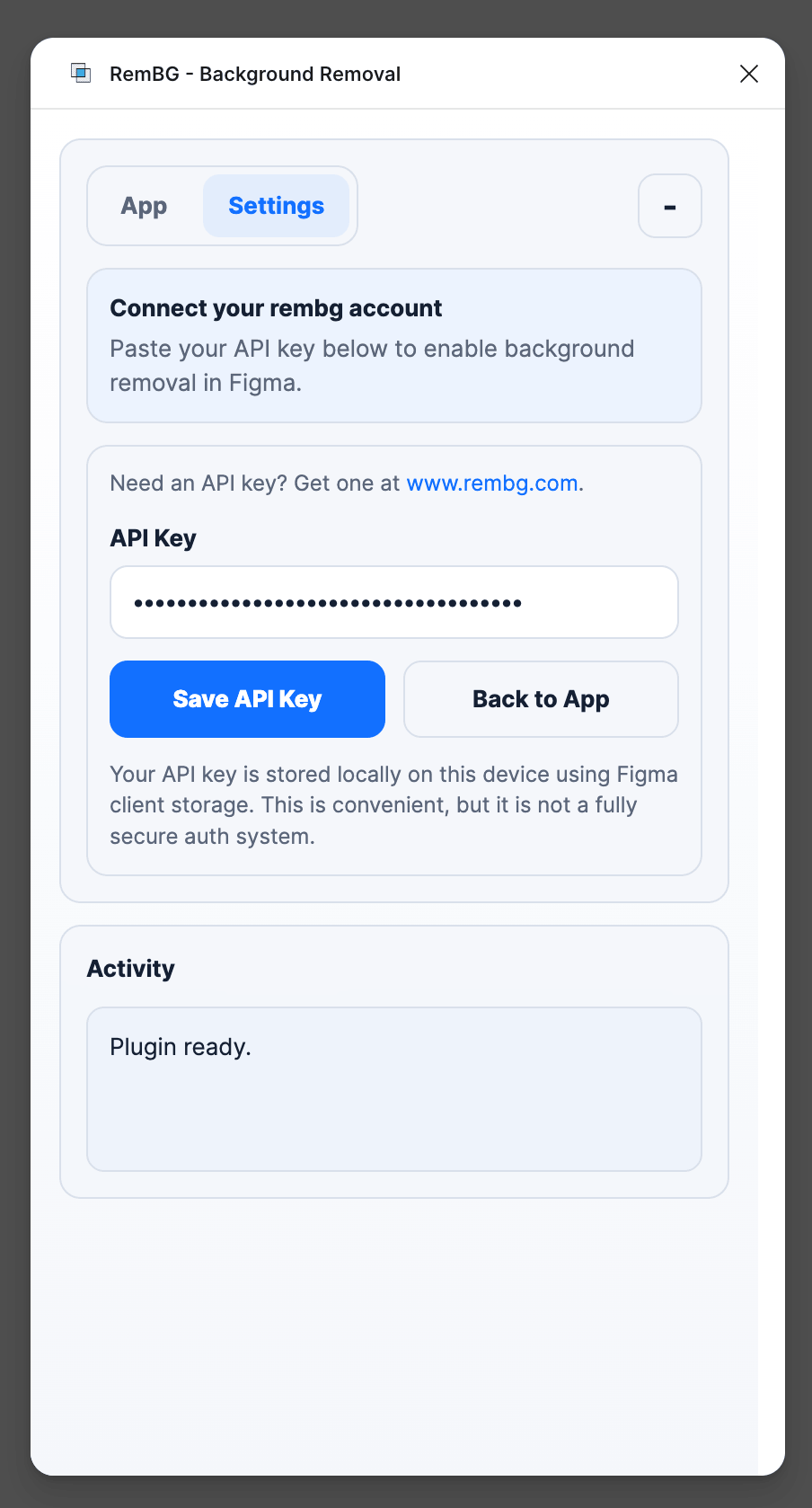
3. Save the API key in the Settings tab
Open the plugin Settings tab, paste your API key, and save it.
Since the RemBG team is almost fanatical about user security and privacy, the plugin stores your key sensibly inside the Figma ecosystem instead of asking you to paste it every time you remove a background. The goal is simple: keep your design workflow fast while keeping your credentials scoped to the tool that needs them.
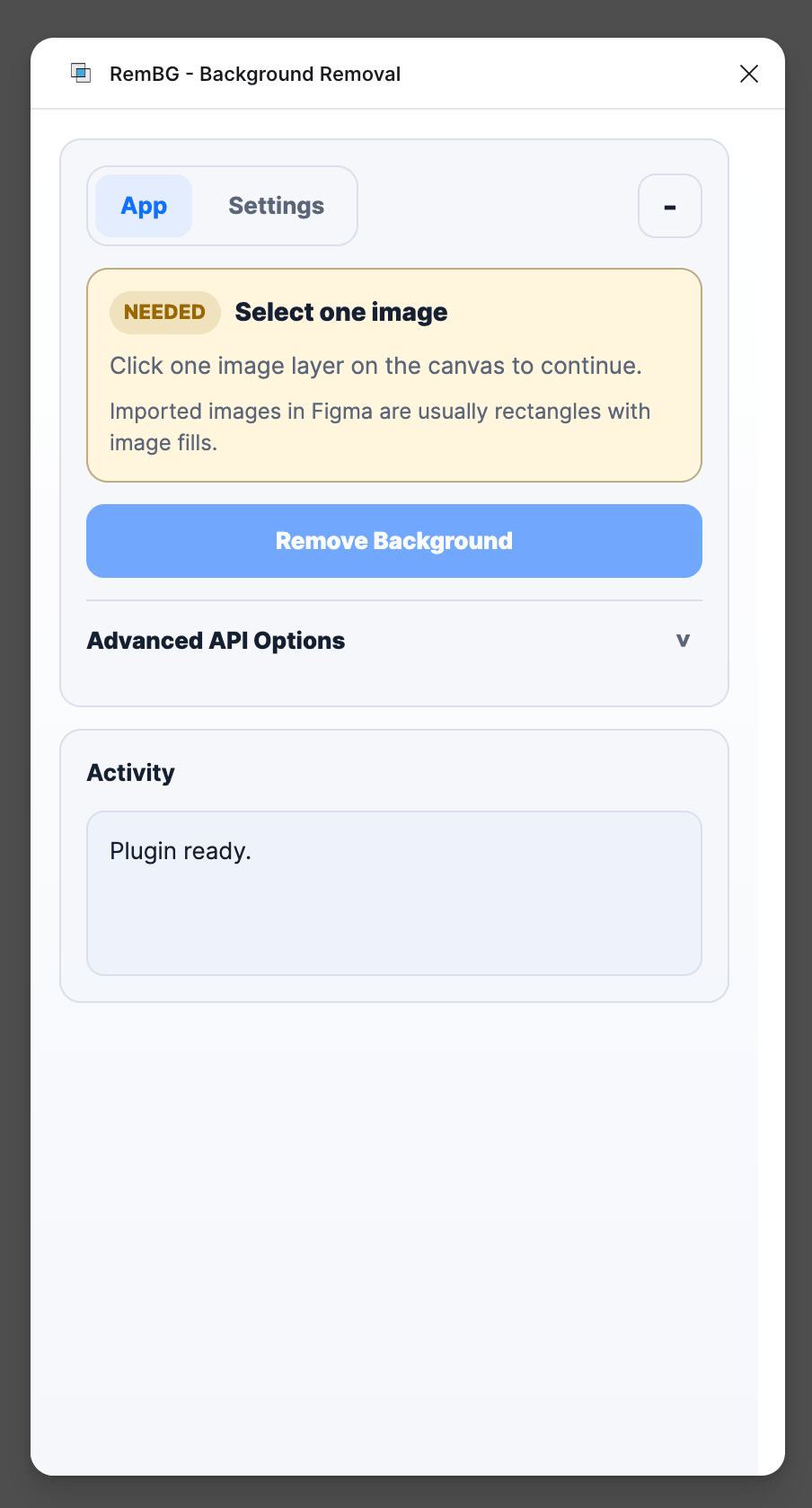
4. Select a compatible image layer
To use the plugin, select one compatible bitmap image layer. In Figma, placed images are usually rectangles with image fills. PNG, JPG, JPEG, and other bitmap images are the natural fit.
Do not select:
- Text
- Vector paths
- Frames
- Groups with no direct image fill
- Pure shape layers with solid fills
- Multiple unrelated layers
The plugin will auto-detect supported objects and show one of two states.
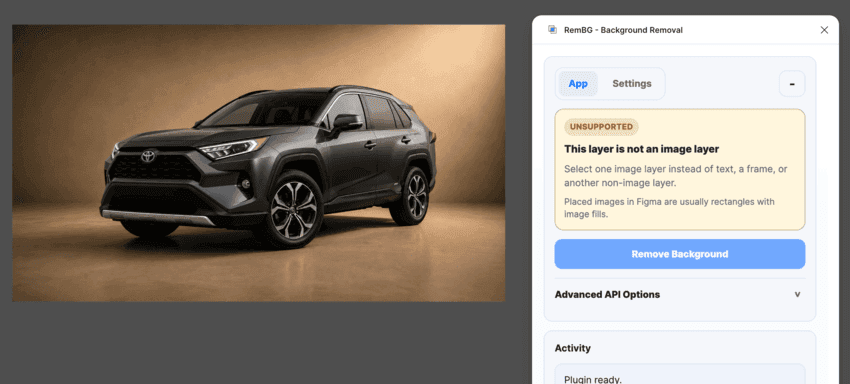
Unsupported state
If the selected layer is not a compatible image, you will see:
Unsupported
This layer is not an image layer
Select one image layer instead of text, a frame, or another non-image layer.Placed images in Figma are usually rectangles with image fills.
That message means the plugin is working correctly. Select a rectangle or layer that actually contains an image fill, then try again.
Ready state
When the selection is valid, you will see:
Ready
Image selected
Click Remove Background to process the selected image.Selected layer: "your_image_name" is a rectangle with an image fill.
At this point the plugin has found a supported image and is ready to process it.
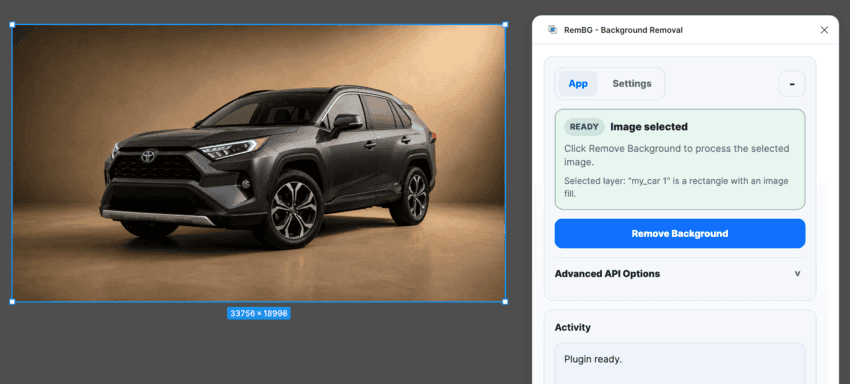
5. Click Remove Background
Click Remove Background. The plugin sends the selected image for Background removal and returns the cutout result to Figma.
Once processing finishes, the background is completely removed without any further manual manipulation. You can keep designing immediately: place the cutout on a card, move it into a hero section, combine it with brand colors, or export the final asset from Figma.
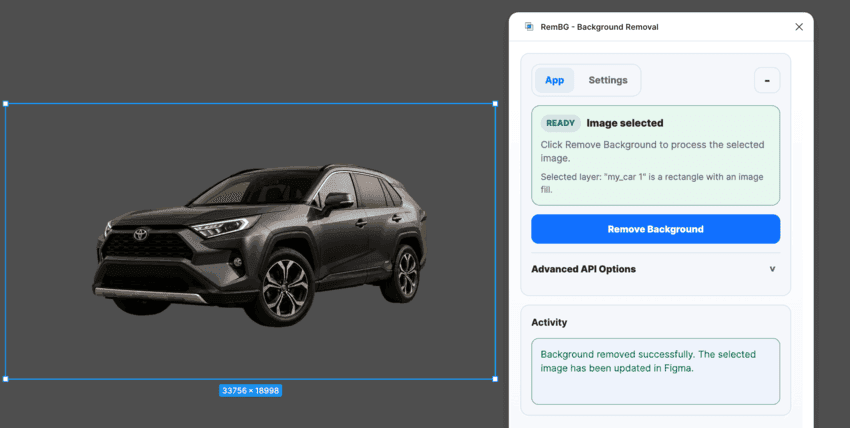
Use the compact view when you need more canvas space
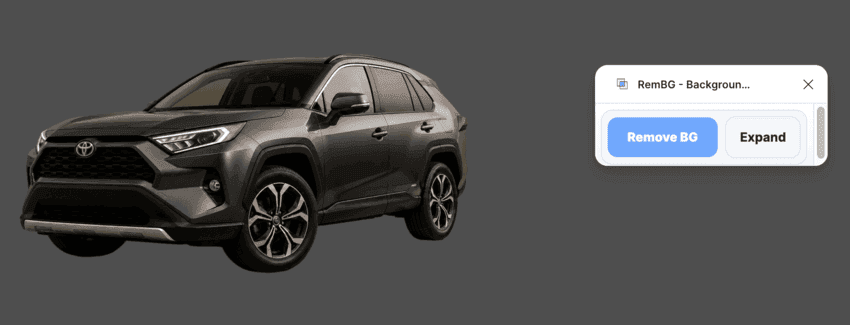
The plugin also includes a small dash button marked -. Click it to reduce the interface into a minimal compact view.
This is useful when you are designing on a smaller laptop screen, working inside a dense component file, or comparing before and after images. The plugin stays nearby without covering the canvas, so you can keep arranging layers while the Background Remover controls remain accessible.
Troubleshooting checklist
If Background removal does not start, check these points:
- Your API key is saved in Settings
- You selected exactly one image layer
- The selected layer is a bitmap image, not text, vector, frame, or shape
- The image fill is available in the selected rectangle
- Your RemBG account still has credits or active API access
For most design files, the fix is simply selecting the actual placed image layer rather than the frame that contains it.
Faster Background removal for Figma designers
The RemBG Figma plugin is built for a focused job: remove image backgrounds without interrupting the design flow. Install it, add your API key, select a supported image layer, and click Remove Background.
For designers who repeat this task every day, a Background Remover inside Figma removes a lot of small context switches. That is where the workflow starts to feel faster.